

Connect your first client
Choose a server, sign in, and verify a read before making changes.
Before you start
Have an MCP client installed and a Magnite identity with access to the account you need. Your organization may need to enable custom connectors in your client.
1. Choose a server
Open the server directory. For Orchestration, start with orch-sandbox to learn the tools and test a buying workflow. It won't create a billable media buy. Select that server, then choose your client. For other services, select the server you need. The directory fills in the gateway URL for you.
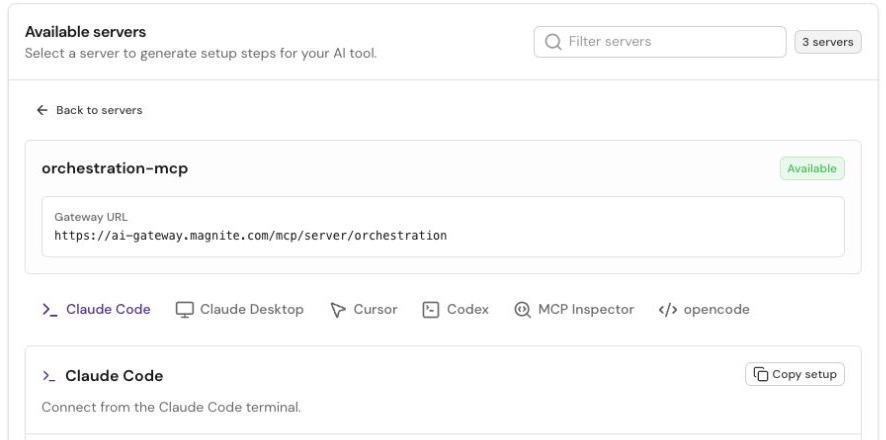
Select a server, then your client. Use the URL displayed by the live directory.
2. Add the connection
Follow the generated setup steps. Use Copy setup to copy the complete procedure, including sign-in and verification.
Already have a URL from Magnite? Use Client setup.
3. Sign in and choose an account
Complete the browser sign-in opened by your client. Select the account assigned to your work. For Orchestration, select a ClearLine buyer account.
See the account picker. If it never appears, use No account picker.
Verify the account
Follow the read-only verification in your server's setup instructions.
- ClearLine: call
clearline_get_current_account. Check its name and ID against the account you selected. - Orchestration /
orch-sandbox: callget_adcp_capabilities, then the boundedget_productsread shown in setup. Capability discovery alone does not check downstream account access.
A completed read confirms that request was accepted. An empty product list can be valid; it does not establish inventory availability or permission for every operation.